PROBLEM
Navigating Perforce as an artist can be intimidating, especially for those who aren’t familiar with the software. What sounds like a simple task, moving through workspaces, opening files, checking them out, can easily become technical and overwhelming. This friction can slow an artist’s workflow and lead to unnecessary frustration.
TOOLS
Perforce, 3ds Max, pymxs, PySide6, Python
SOLUTION
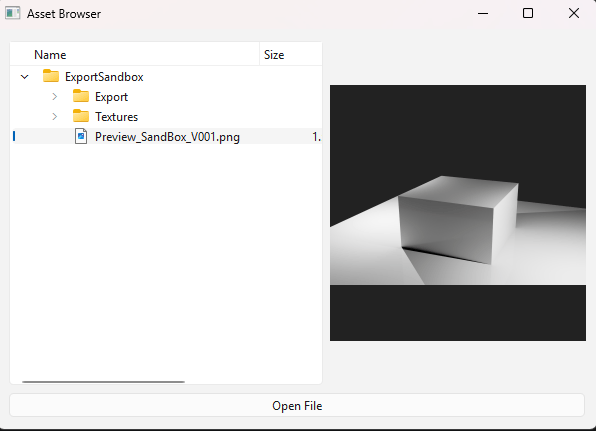
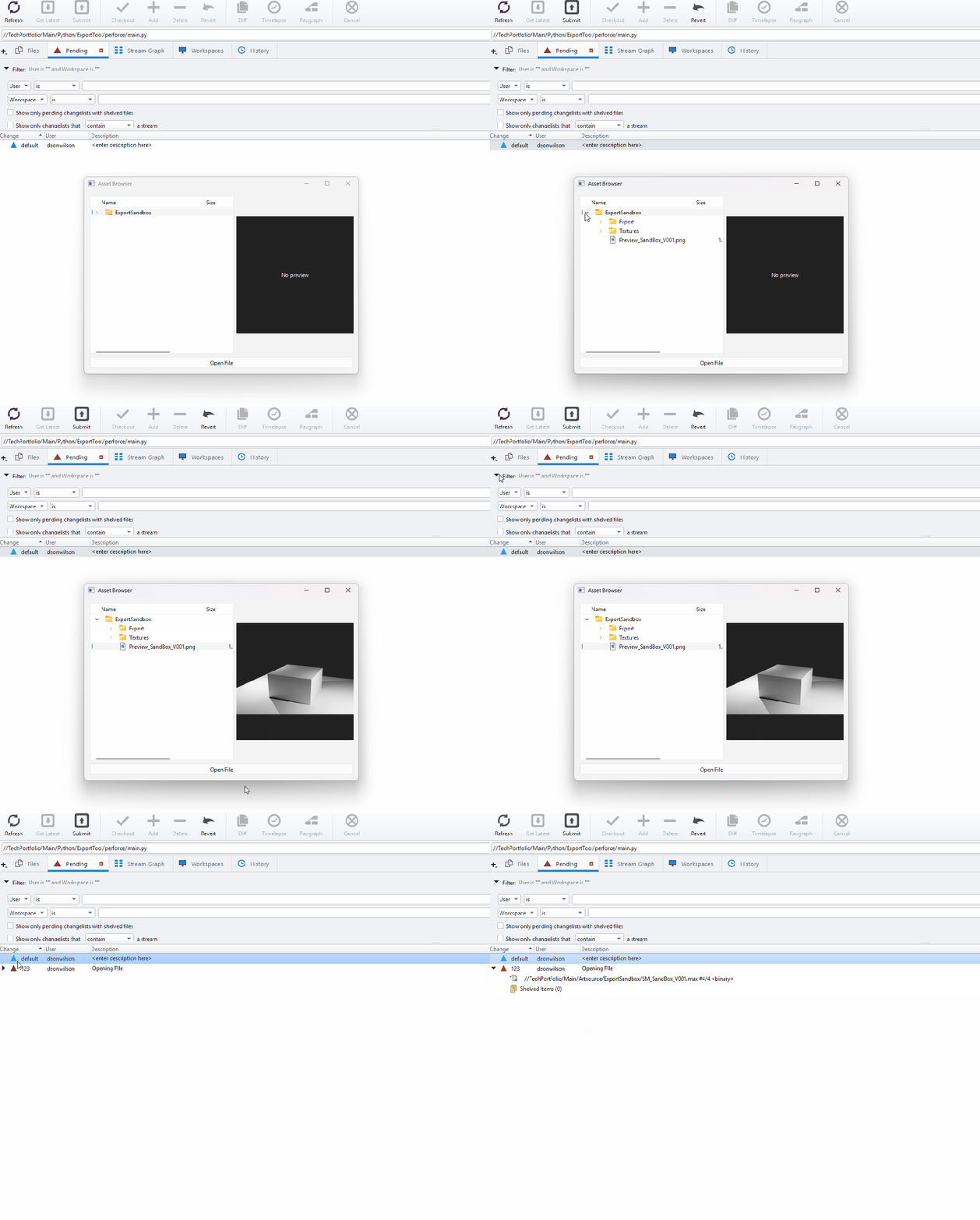
To reduce that friction, I set out to simplify the process with a clean and approachable user interface. The artist can click on a thumbnail image previewing the scene giving a visual confirmation the asset is what they need. From there, they can select the thumbnail and open the file directly in the program. Behind the scenes, the tool automatically checks out the asset and moves it into a changelist in Perforce, removing the technical overhead from the artist’s experience.
Perforce Integration
3DS Max Integration
WORKFLOW
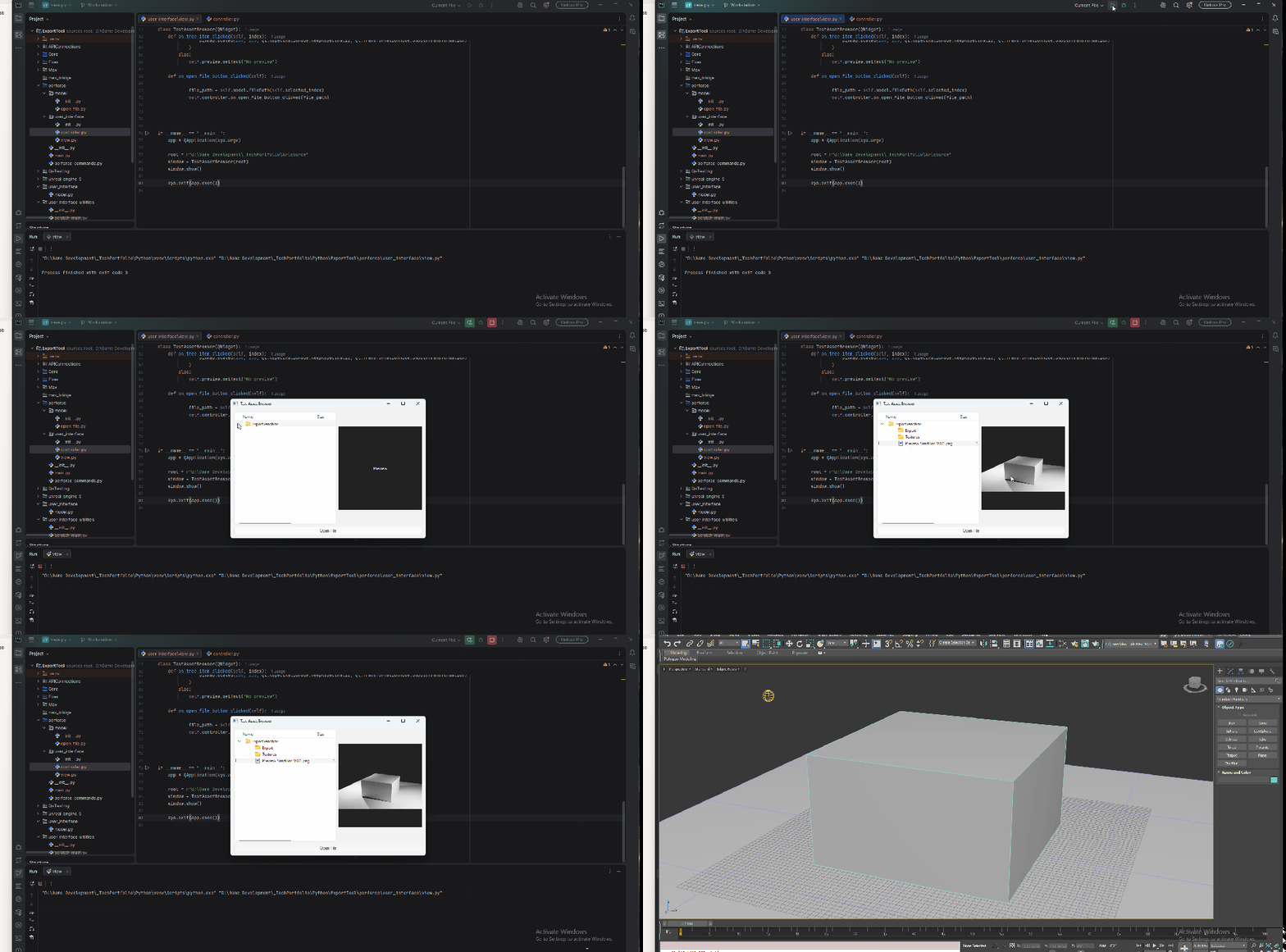
The workflow becomes straightforward: run the asset browser, navigate to the asset, select the preview thumbnail, and click Open.
WHAT I LEARNED
Throughout the project, I learned how to use PySide6’s QTreeView and QFileSystemModel classes to display directories and files, and I turned those components into modular pieces for future custom widgets. I also built a Perforce module to reuse commands across projects and created methods to convert file names into proper Perforce formats. Although I had used the Pillow module before for QA work, this project taught me how to display and manipulate images within a user interface, expanding my knowledge integrating visuals into interfaces moving forward.

